Completing Onboarding
Personalise your MyADHDTracker experience
After creating your account, you'll complete a short setup wizard (7 screens) to personalise your MyADHDTracker experience. This helps us tailor the app to your needs and enables accurate tracking.
Getting Started & Privacy
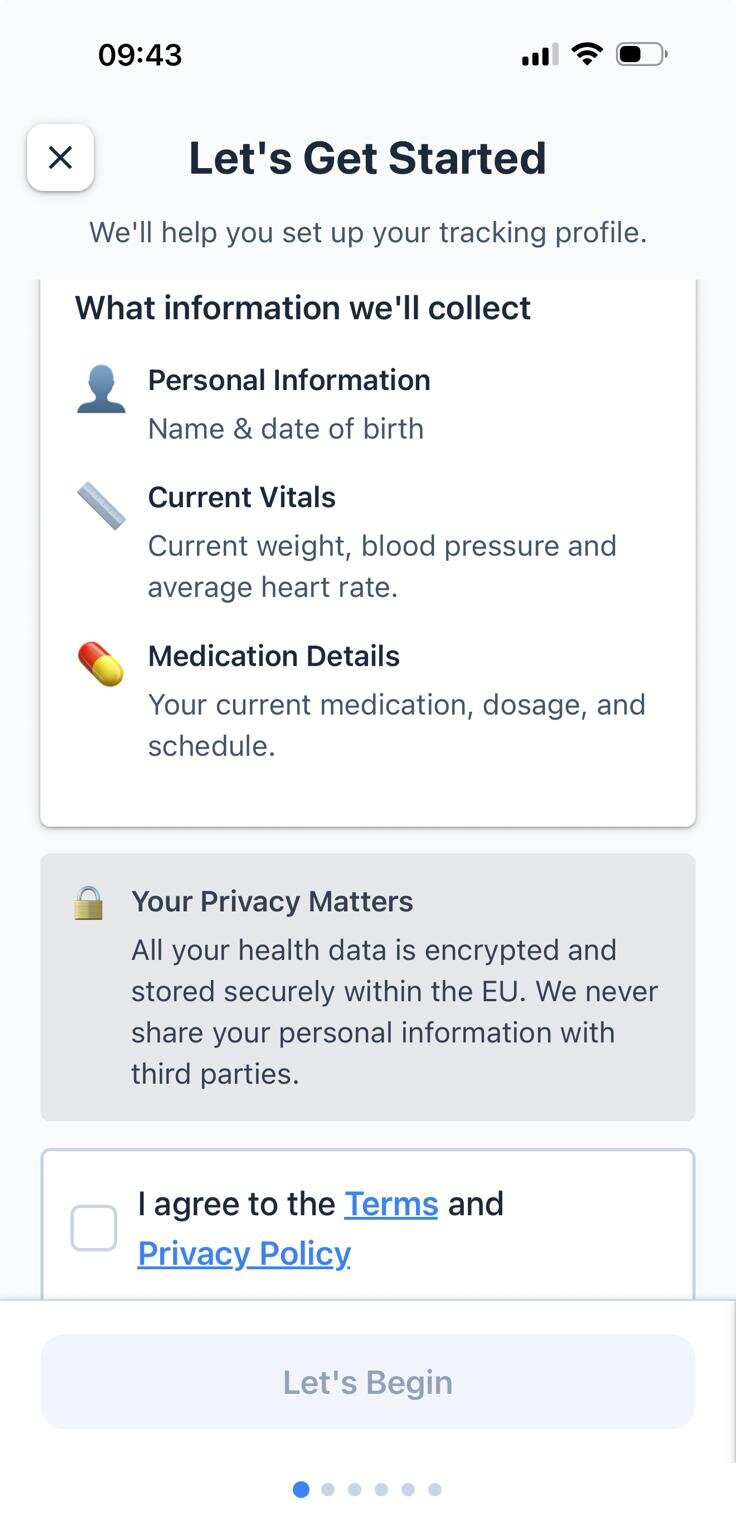
This screen explains what information we collect and how we protect your data. It's important to read and understand this before continuing.
What we collect:
- • Personal details (name, date of birth)
- • Current vitals (weight, blood pressure, heart rate)
- • Medication details (name, dosage, schedule)
- • Daily health logs and symptom tracking
Step by step:
- 1. Read through the information about data collection
- 2. Review the links to Terms of Service and Privacy Policy
- 3. Tick the checkbox to agree to the Terms and Privacy Policy
- 4. Tap "Continue"
Your data is secure: All data is encrypted and stored within EU data centres. We never share your information with third parties.
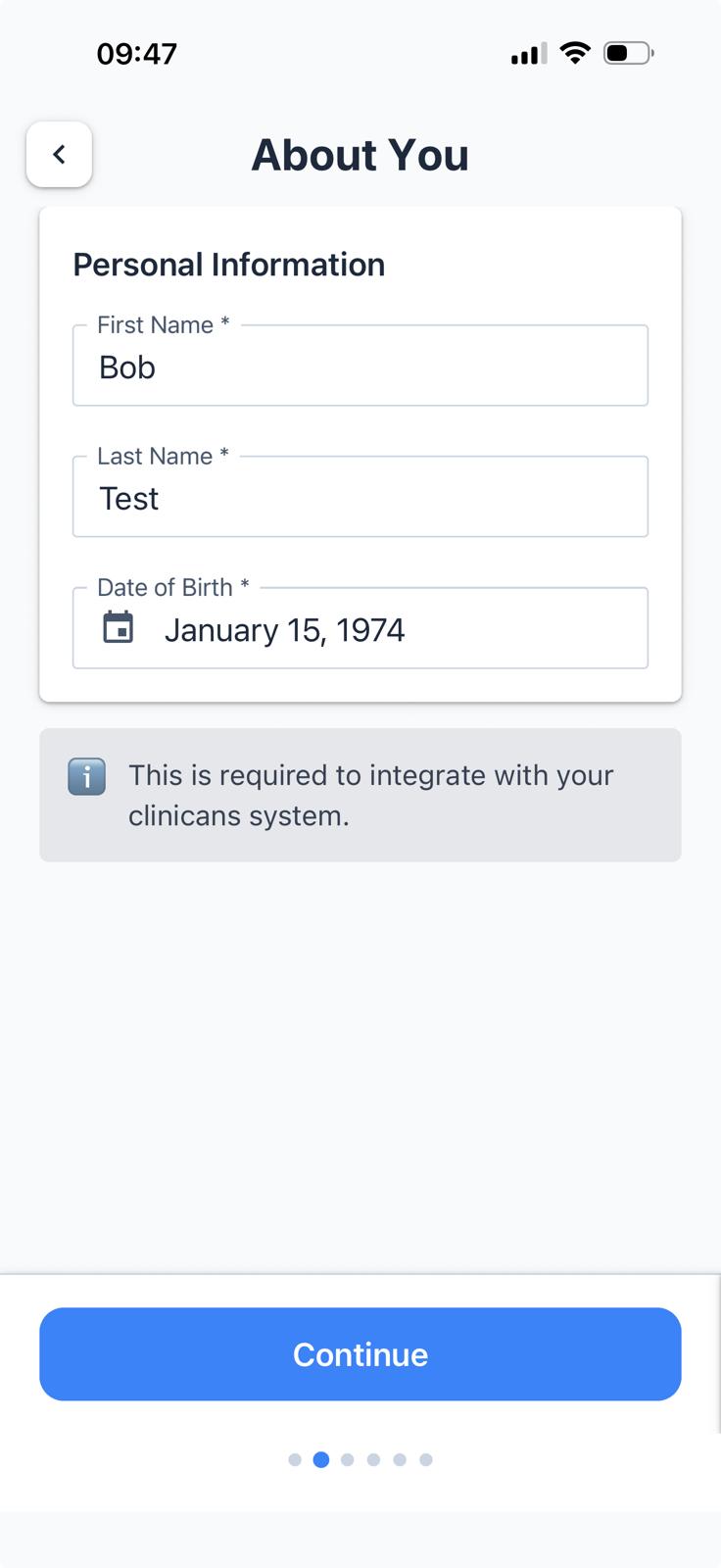
About You
Enter your personal details so we can personalise your experience and ensure your data matches your clinic's records.
Information needed:
- First Name Enter your first name as it appears on your clinic records
- Last Name Enter your surname/family name
- Date of Birth Tap to open the date picker and select your birth date
Once complete, tap "Continue" to proceed.
Starting Measurements
Enter your current health measurements. These serve as your baseline and help track changes over time during your treatment.
Weight is required. Blood pressure and resting heart rate are optional - enter what you know. You can update these later in Settings.
Measurements to enter:
Weight
Enter your current weight. Use the toggle to switch between kg and lbs.
Resting Heart Rate
Enter in beats per minute (BPM). Tip: Measure this first thing in the morning before getting out of bed for the most accurate reading.
Blood Pressure
Enter your systolic (top number) and diastolic (bottom number) readings. Example: 120/80 mmHg.
Tap "Continue" when you've entered your measurements.

Add Your Medications
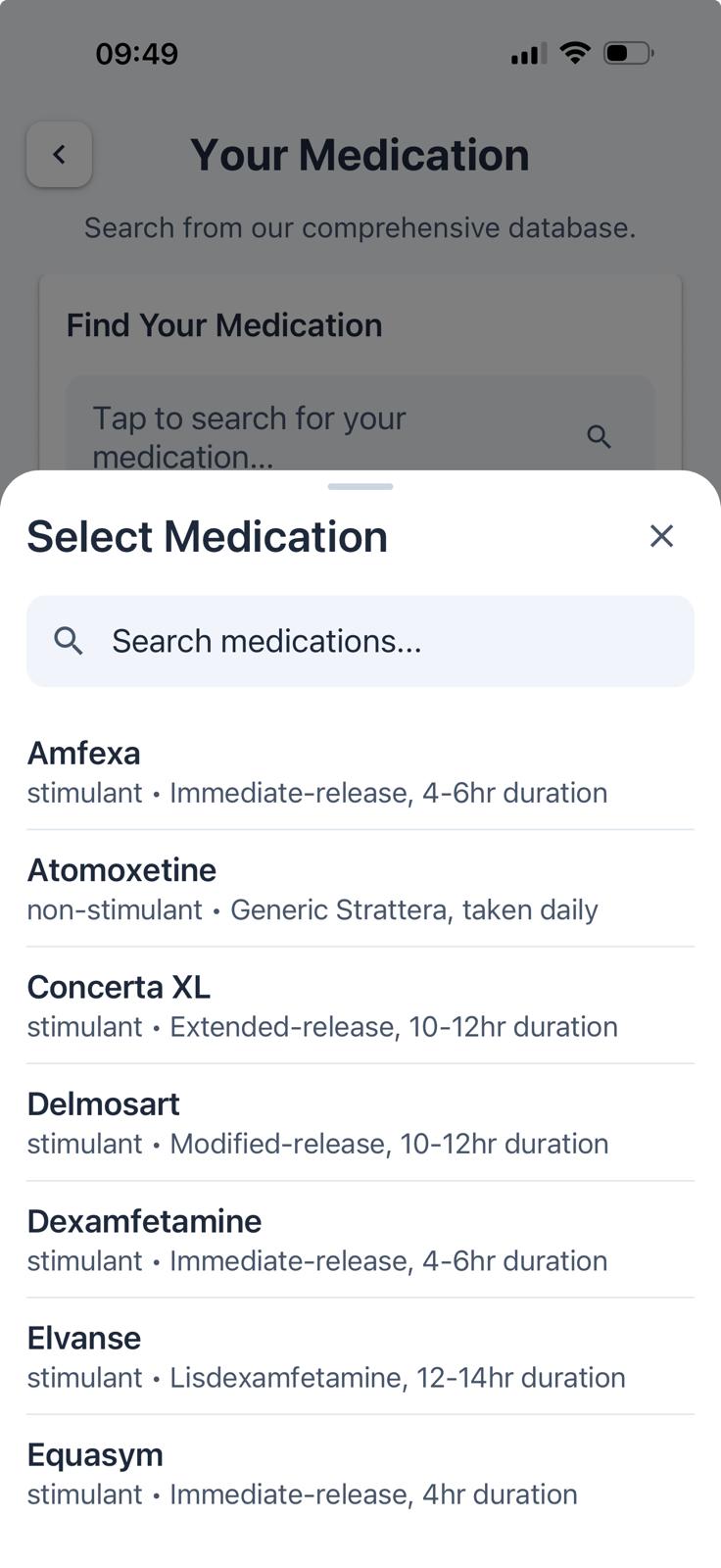
Search for and add the ADHD medications you're currently taking. This allows the app to send you reminders and track your adherence.
Step by step:
- 1. Tap the search bar at the top of the screen
- 2. Start typing your medication name (e.g., "Elvanse", "Concerta", "Ritalin")
- 3. Matching medications will appear in a list below
- 4. Tap on your medication when it appears in the results
- 5. You'll be taken to the configuration screen to set the dosage and schedule
Can't find your medication? Contact your clinic or use the feedback option in the app. Our medication database is regularly updated.
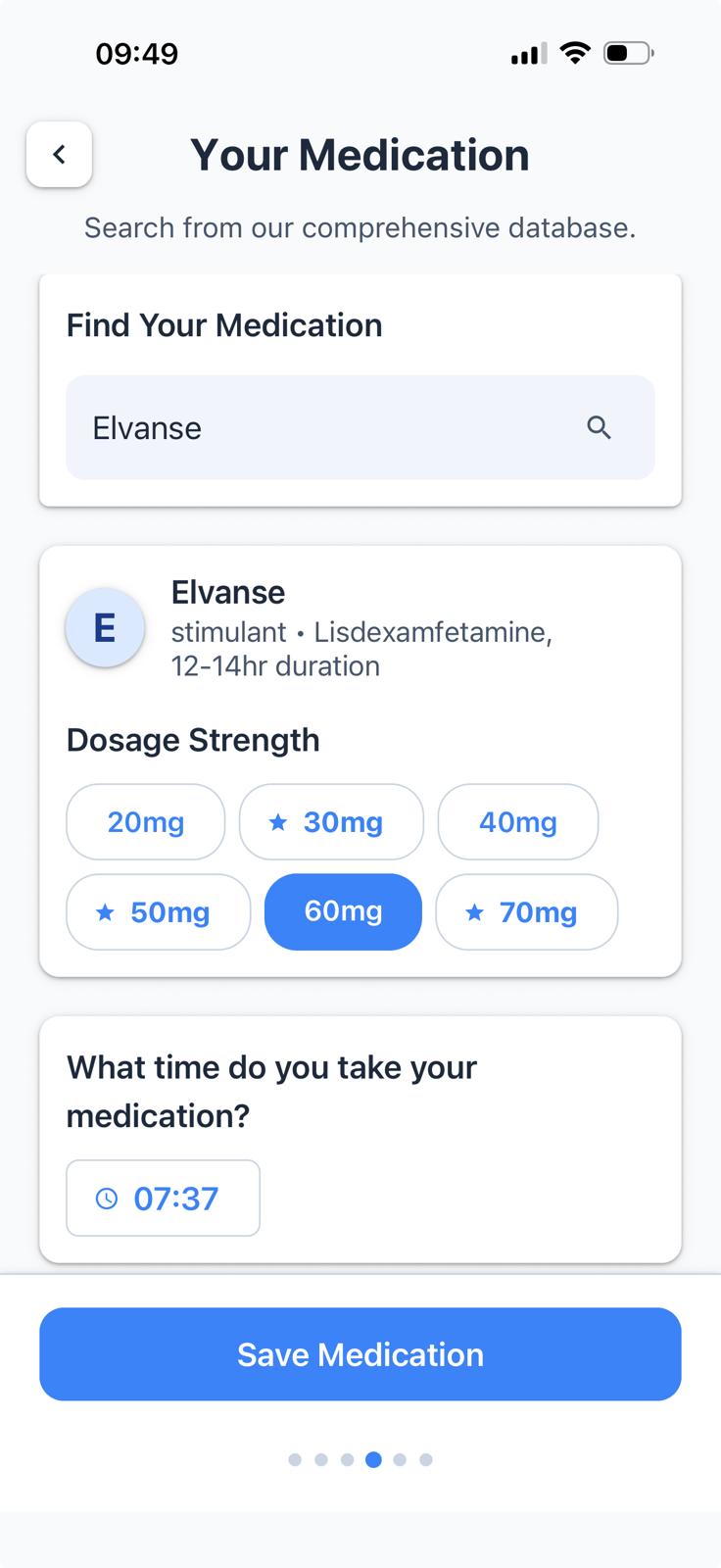
Configure Your Medications
Set up the details for each medication you take. This ensures you receive accurate reminders at the right time.
For each medication, set:
Dosage
Enter your prescribed dosage (e.g., "30mg", "50mg"). This should match what your doctor prescribed.
Schedule Time
Set the time you take this medication. Tap the time field to open a picker and select your usual time.
Taking multiple medications?
- • Tap "Add Another Medication" to return to the search screen
- • Repeat the process for each medication
- • To remove a medication, tap the remove button next to it
Tap "Continue" when all medications are configured.
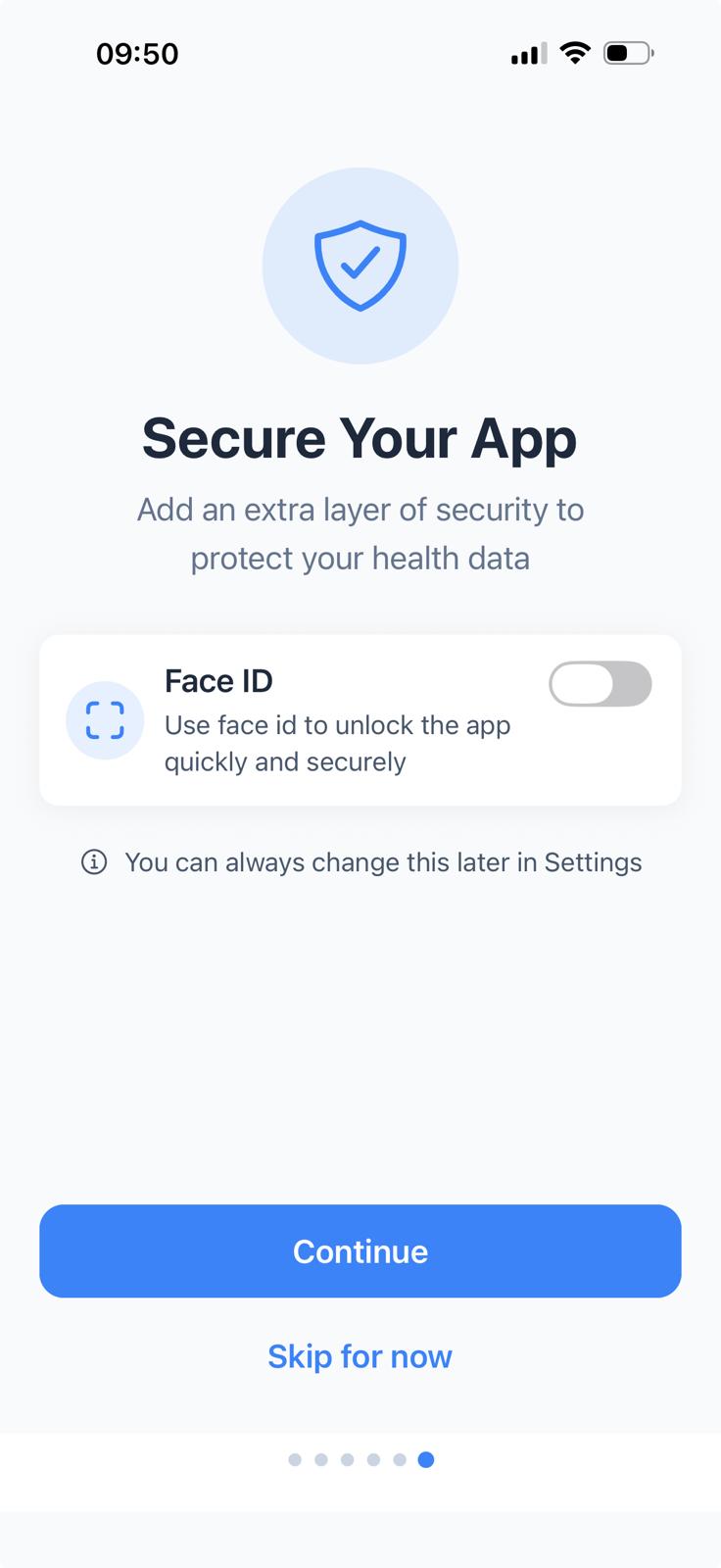
Security Setup
If your device supports Face ID, Touch ID, or fingerprint authentication, you can enable quick biometric login for faster, more secure access to the app.
Your options:
Tap "Enable"
Use Face ID/Touch ID/fingerprint to log in quickly without entering your password each time.
Tap "Skip"
Use your email and password to log in each time. You can enable biometrics later in Settings.
Tip: Biometric login is recommended for convenience and security. You can change this setting at any time in the app's Settings menu.
Tap "Continue" to proceed.
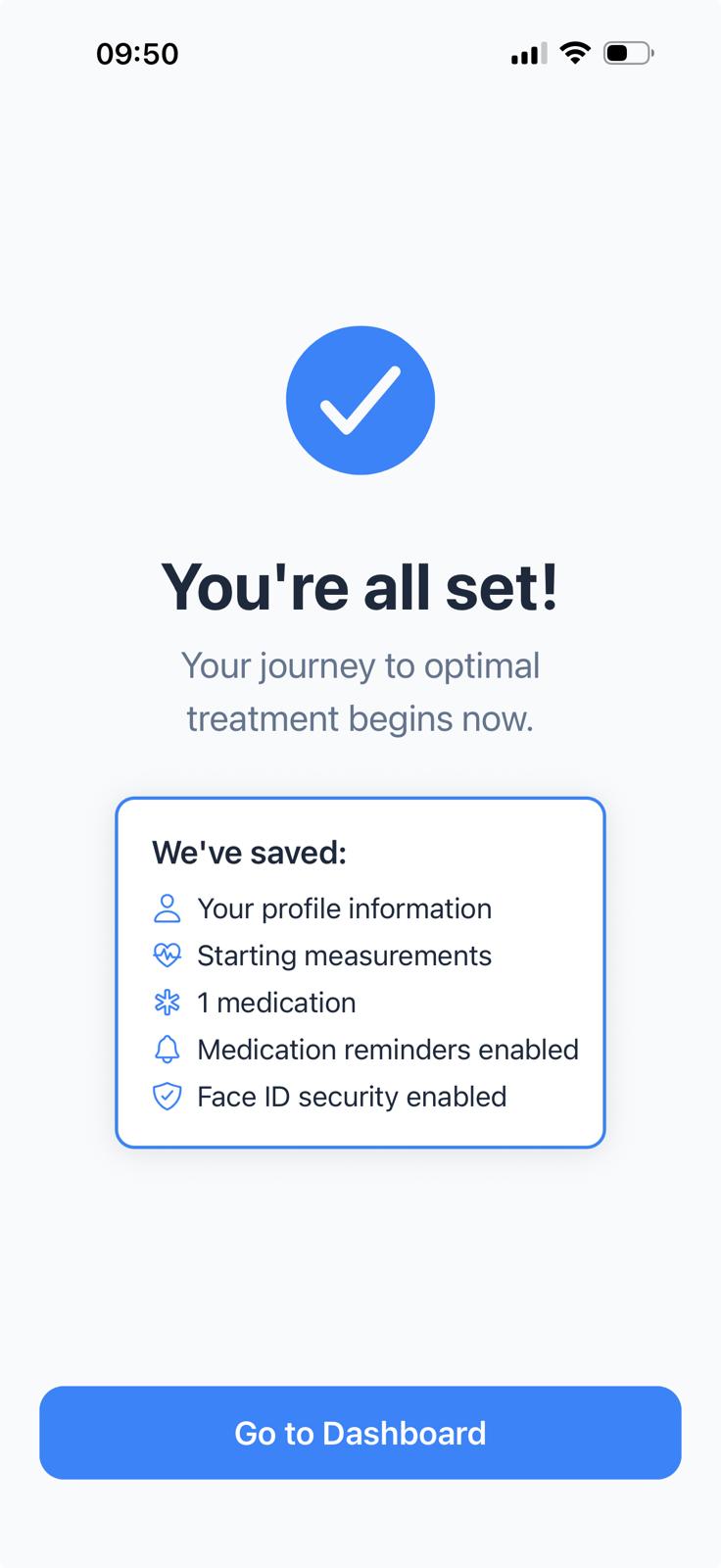
Setup Complete!
The app will now save all your information. You'll see a brief loading screen while this happens.
Summary of what was saved:
- Your profile information (name, date of birth)
- Starting measurements (weight, blood pressure, heart rate)
- Your medications and dosages
- Medication reminders (if enabled)
- Biometric security settings (if enabled)
Your data is saved automatically and you'll be taken directly to the Home screen to start using MyADHDTracker!
Congratulations! You've completed the onboarding process. You're now ready to start tracking your ADHD treatment with MyADHDTracker.