Daily Use
Learn how to use MyADHDTracker every day
Now that you're set up, here's how to use MyADHDTracker on a daily basis. The app has four main areas accessible from the bottom navigation bar.
Home - Your Daily Dashboard
Your Daily Overview
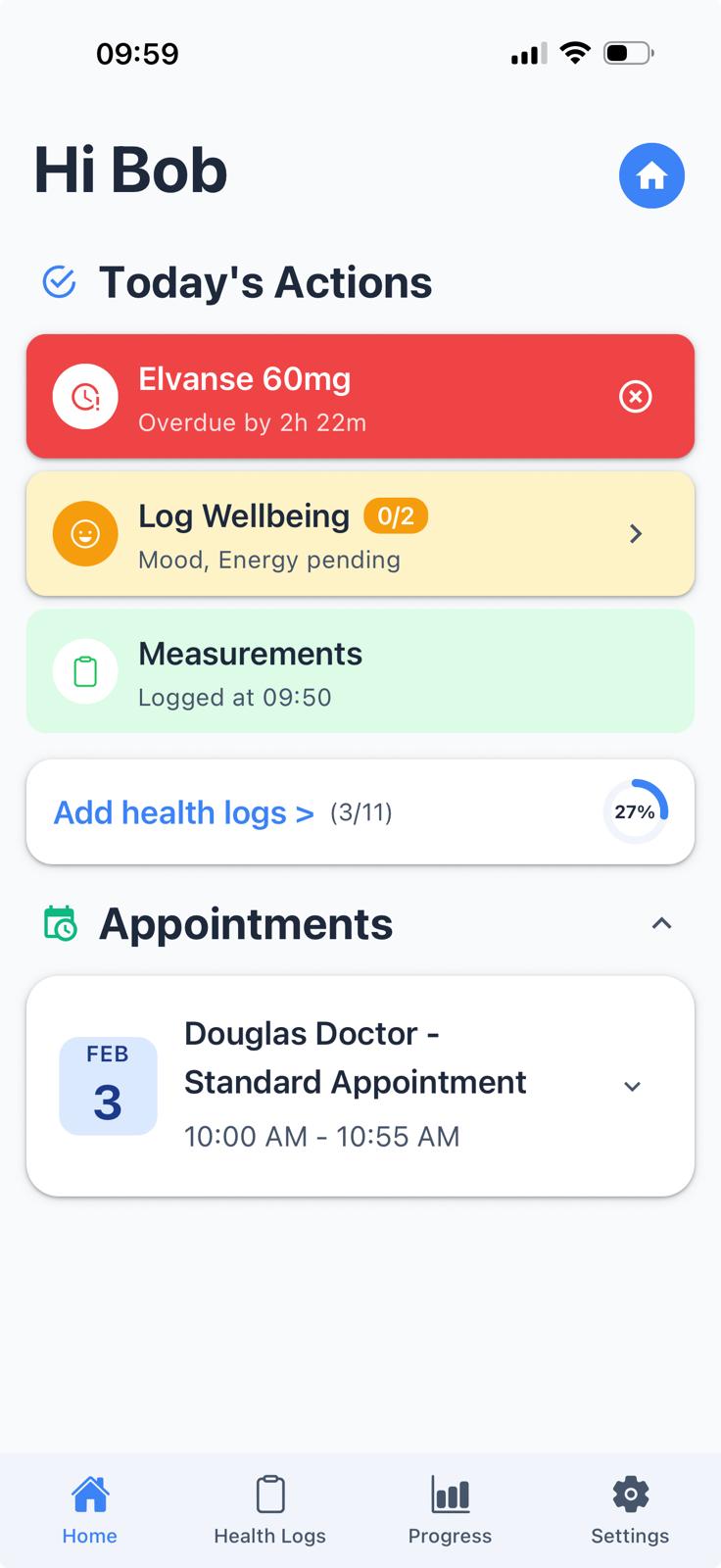
The Home screen shows what needs your attention today and makes it easy to log your medication.
What you'll see:
- • Greeting - A personalised "Good morning/afternoon" message
- • Today's Medications - Shows your medications with their current status
- • Health Log Reminders - Prompts to log health data for the week (e.g., "Log Wellbeing - Mood, Energy pending")
- • Quick Add Card - Shows your logging progress (e.g., "3/11 items logged")
- • Upcoming Appointments - If your clinic uses Cliniko, you'll see reminders for any upcoming appointments
Logging Your Medication
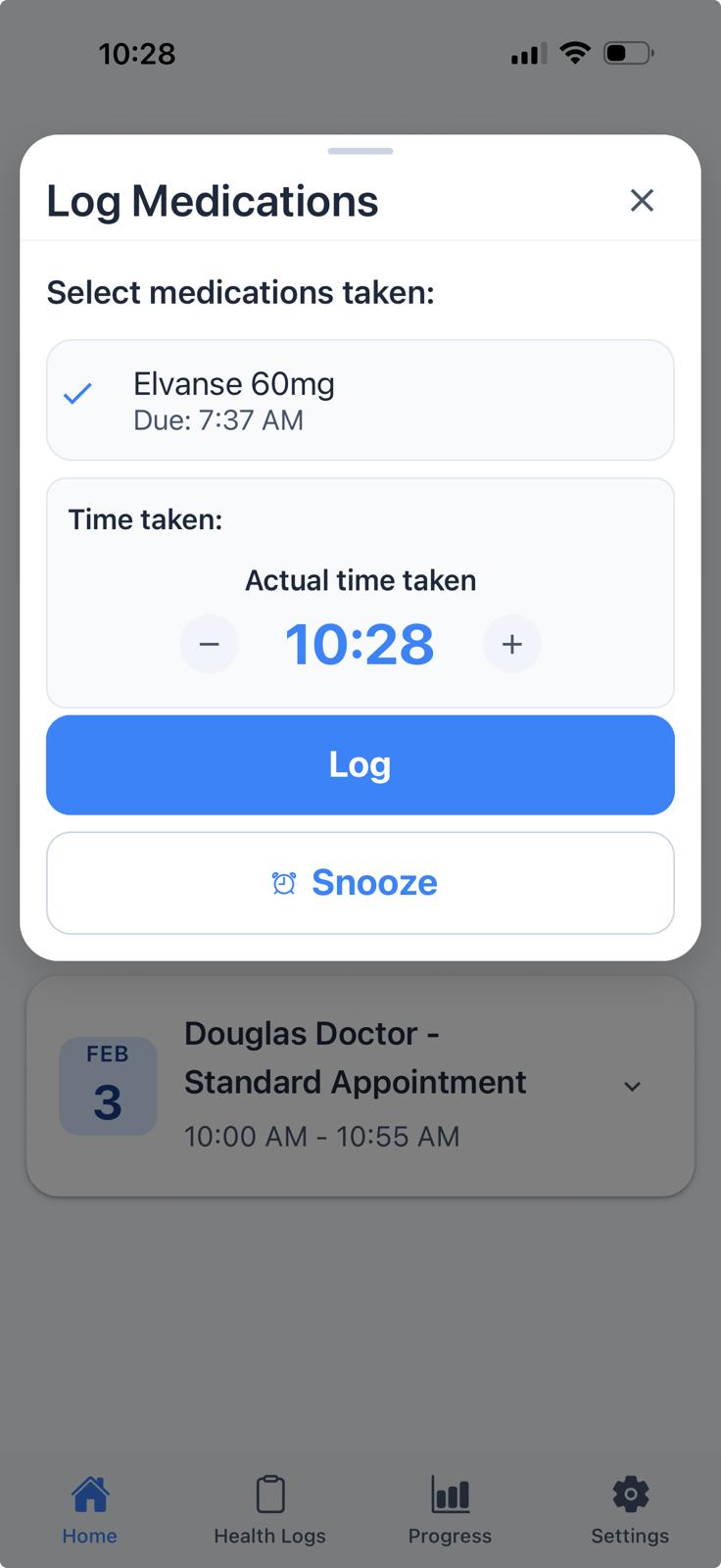
When it's time to take your medication, you can quickly log it from the Home screen.
How to log:
- 1. Find your medication in "Today's Actions"
- 2. Tap the "Log" button next to it
- 3. Confirm the time you took it (defaults to now)
- 4. The status will change to "Logged" with a checkmark
Need more time?
If you're not ready to take your medication yet, tap "Snooze" to be reminded again later. You can choose from 5, 15, 30, or 60 minutes.
Health Logs - Track Your Wellbeing
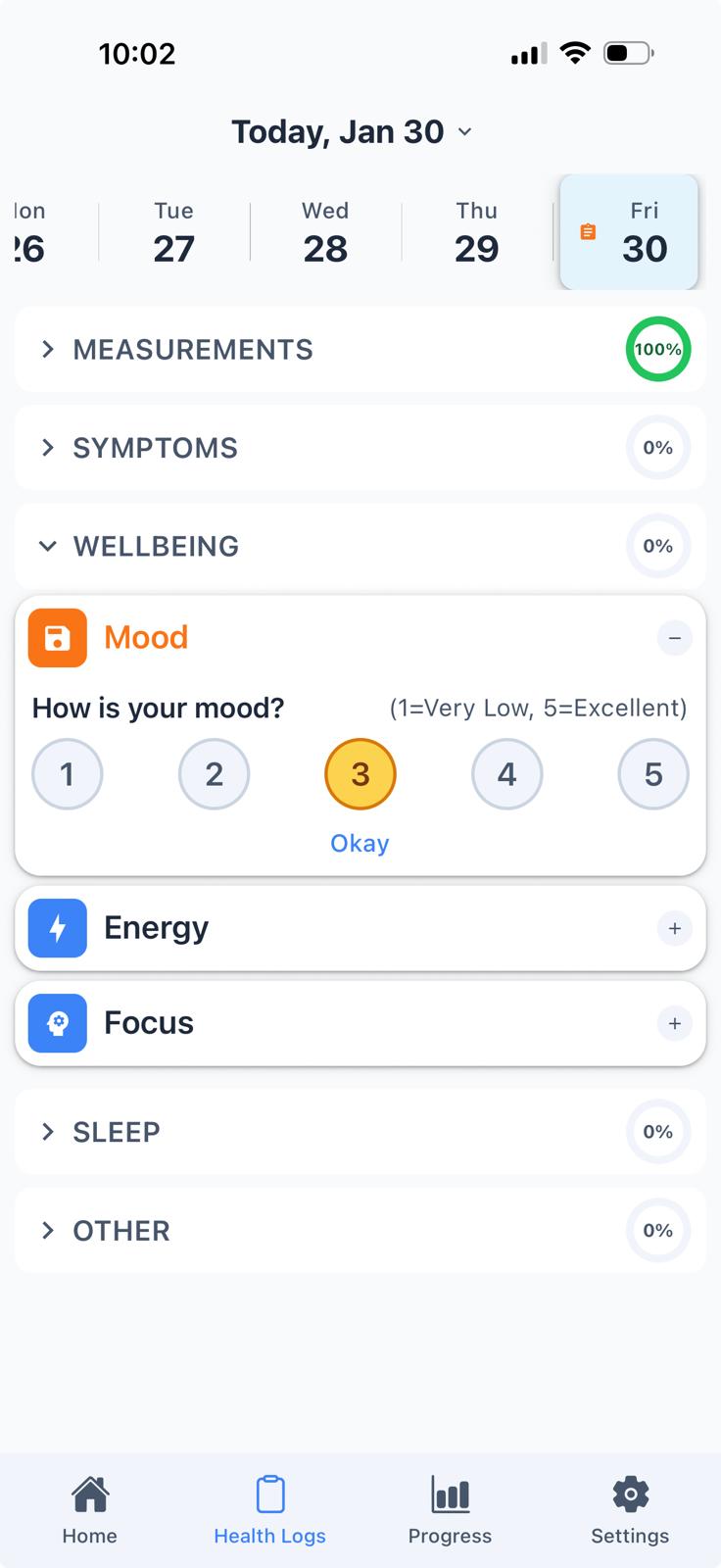
The Health Logs screen lets you record 11 different health metrics across 5 categories. This data helps your clinician understand how your treatment is working.
Categories you can track:
Scoring Guide:
- Symptoms, Wellbeing, Mood & Energy - Use a 5-point scale: 1 = Bad/Low, 5 = Excellent
- Sleep - Rate how well you slept last night
How to log:
- 1. Use the date ribbon at the top to select a day
- 2. Tap on a category to expand it
- 3. Tap on a card to enter your data
- 4. Fill in the value and tap "Save"
Progress - Reports & Sharing
Progress Overview
The Progress screen shows sparkline charts for each of your health metrics, giving you a quick visual summary of your recent trends over the last 14 days.
- • Sparkline Charts - Quick visual trends for each health metric
- • At-a-Glance Summary - See how your wellbeing has changed recently
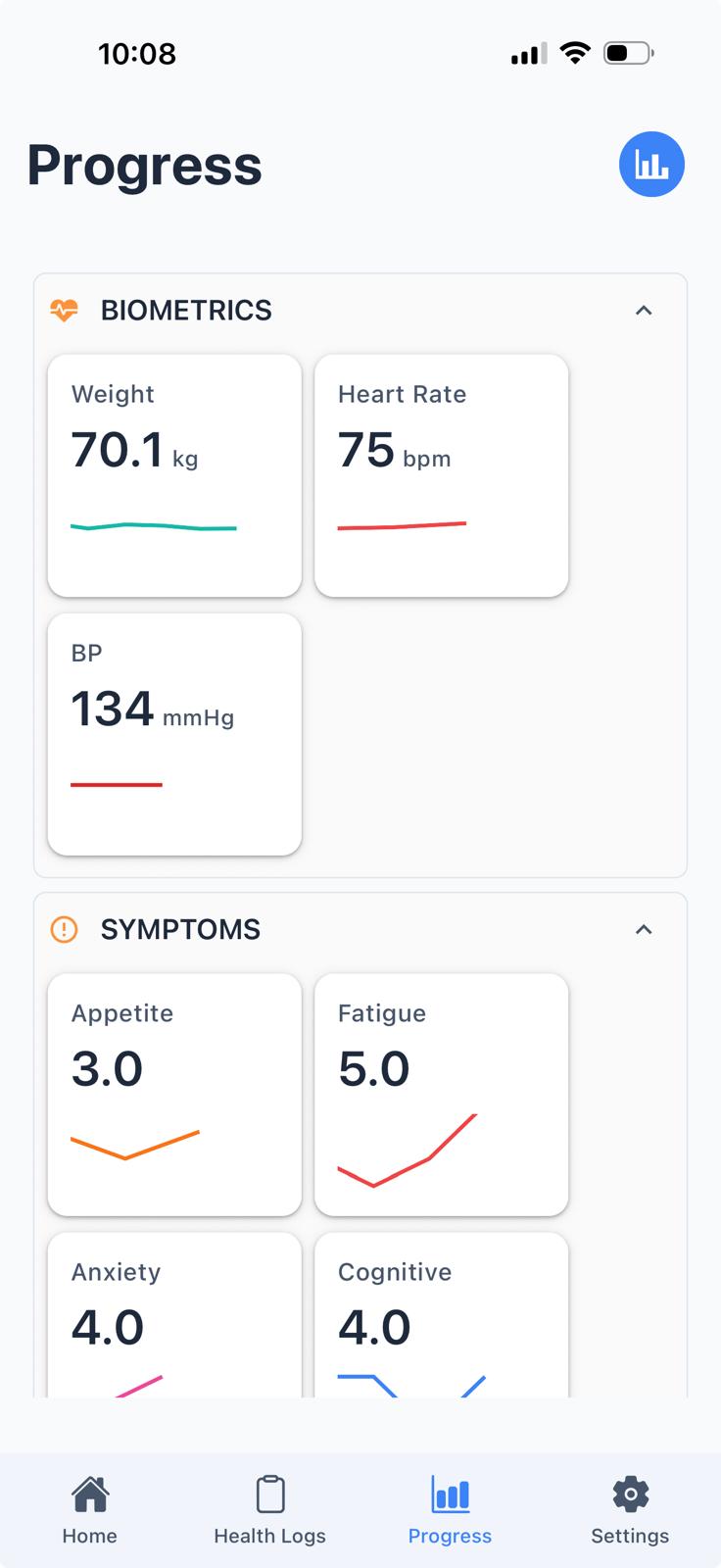
Chart View
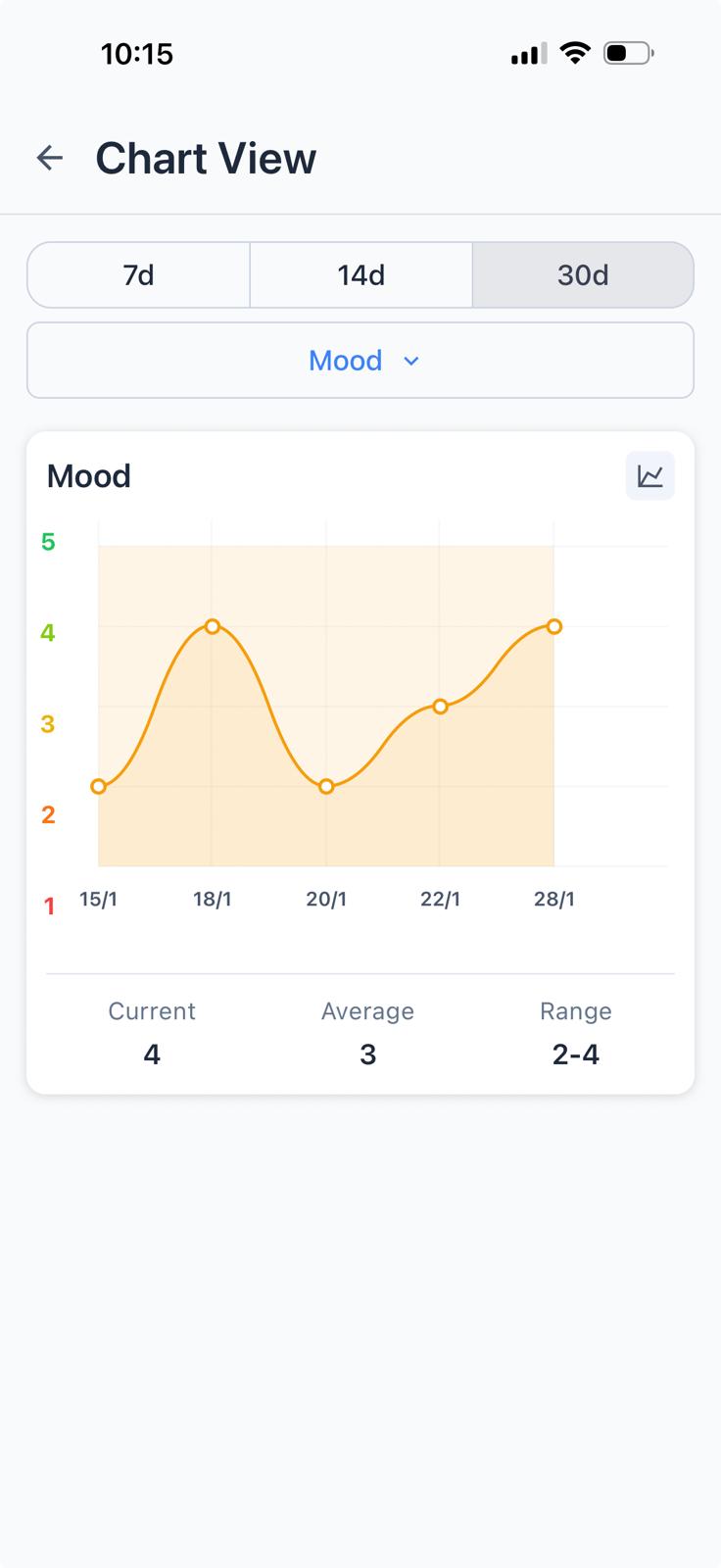
Tap on any metric card to open a detailed chart view. This shows your data plotted over time with helpful statistics.
Features:
- • Time Period - Switch between 7, 14, or 30 day views
- • Metric Selector - Use the dropdown to switch between different health metrics
- • Statistics - View your Current value, Average, and Range for the selected period
- • Chart Toggle - Switch between line and bar chart views
Tip: Rating metrics (mood, energy, etc.) use a colour-coded scale from red (1) to green (5) to help you quickly understand your trends.
30 Day Summary Report
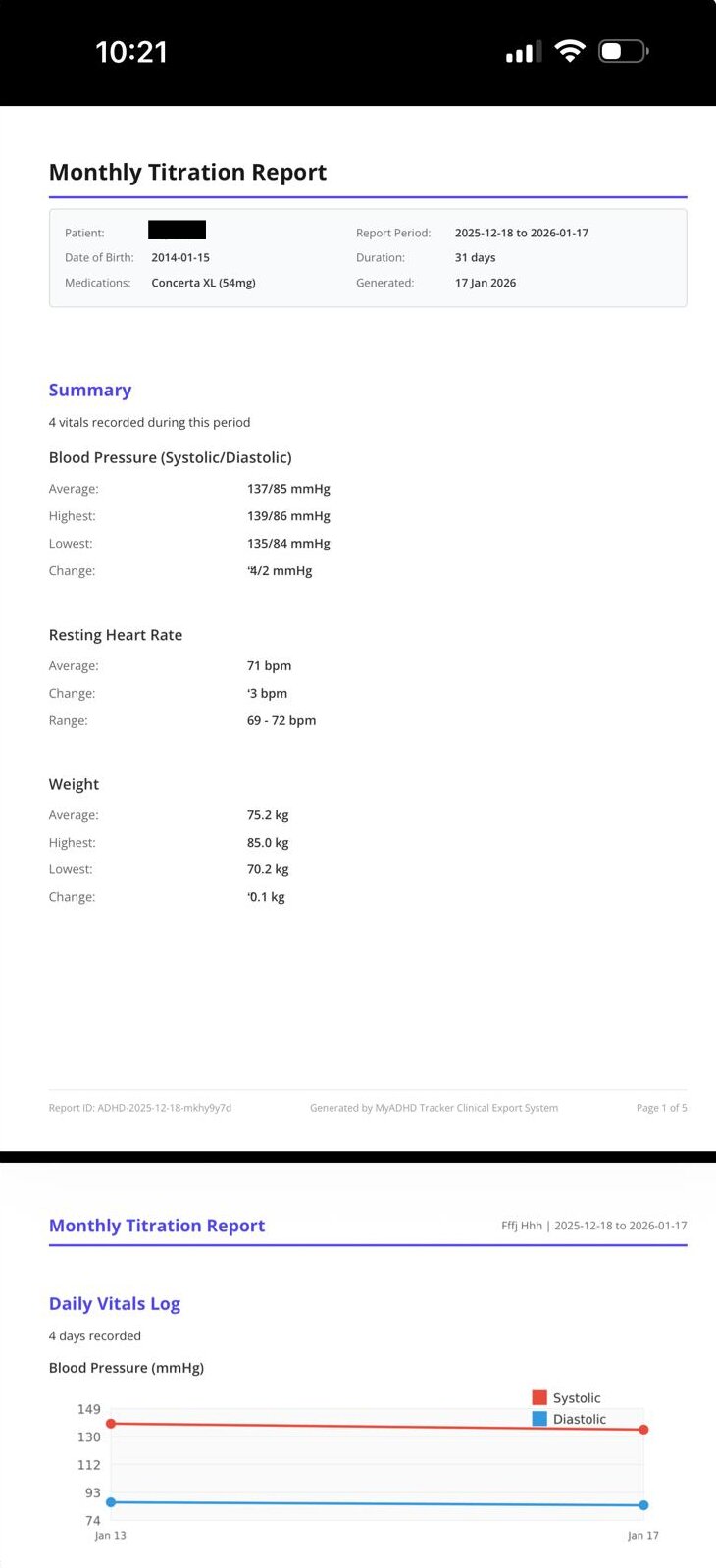
Generate a detailed PDF report covering the last 30 days of your health data to share with your healthcare provider.
To share a report:
- 1. Tap "Share Report"
- 2. Wait for the report to generate
- 3. Choose how to share (email, message, etc.)
Settings - Manage Your Account
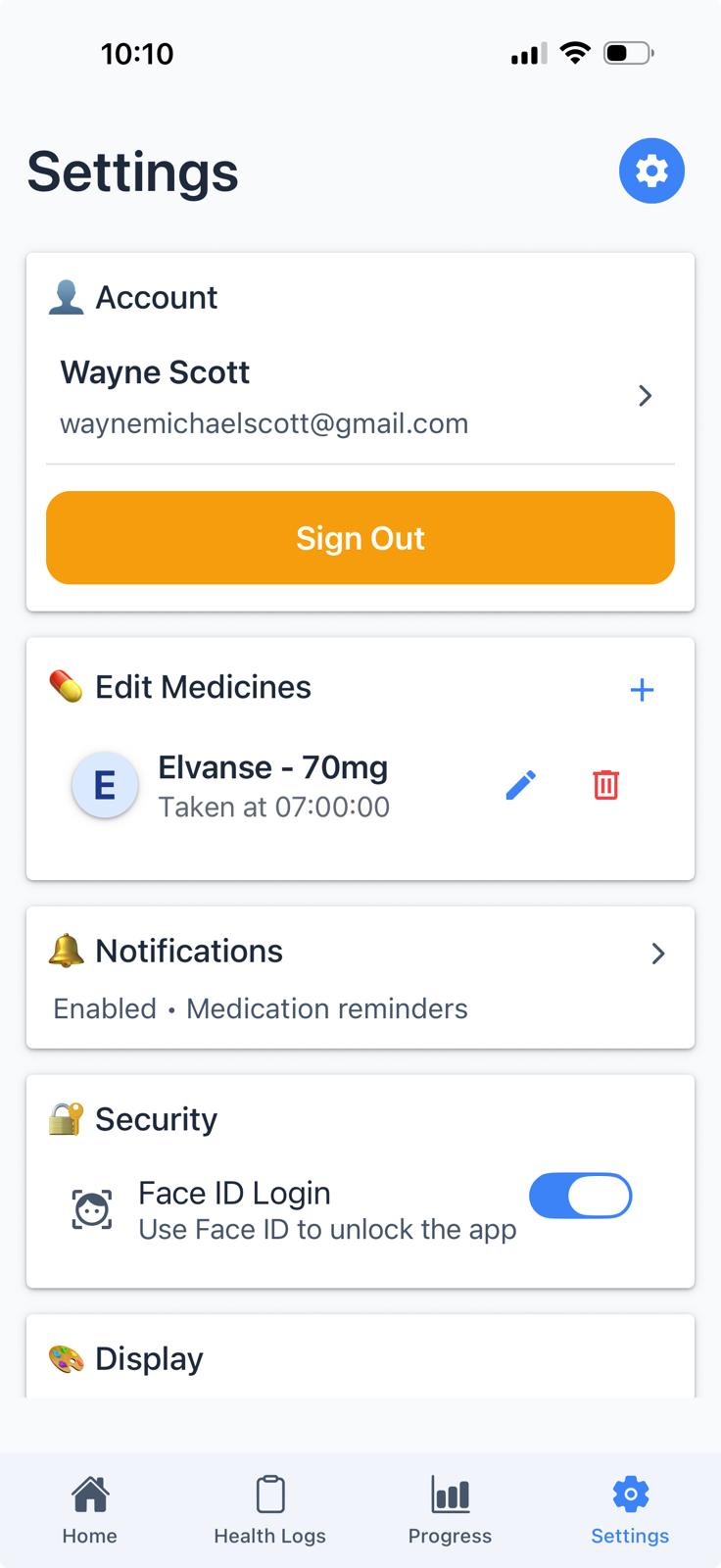
The Settings screen lets you manage your account, medications, notifications, and display preferences.
What you can do:
Account
View and edit your personal details. Sign out of the app.
Edit Medicines
Change medication times, add new medications, or remove existing ones.
Notifications
Configure medication reminders and repeat notification settings.
Security
Enable or disable biometric login (Face ID/Touch ID).
Display
Toggle compact health cards and choose weight units (kg/lbs).
Quick Reference
| Task | Where to Go |
|---|---|
| Log medication | Home > Tap "Log" next to medication |
| Record health data | Health Logs tab > Select category > Enter data |
| View past entries | Health Logs > Use date ribbon to select date |
| Share report with clinician | Progress tab > Select report > Share Report |
| Change medication time | Settings > Edit Medicines > Tap pencil icon |
| Add new medication | Settings > Edit Medicines > "+" button |
| Enable/disable biometrics | Settings > Security > Toggle biometric login |
| Change notification settings | Settings > Notifications |
| Sign out | Settings > Sign Out |