2
Creating Your Account
Set up your account using your clinic invitation
Your clinic will send you an invitation email with everything you need to get started. Follow these simple steps:
2.1
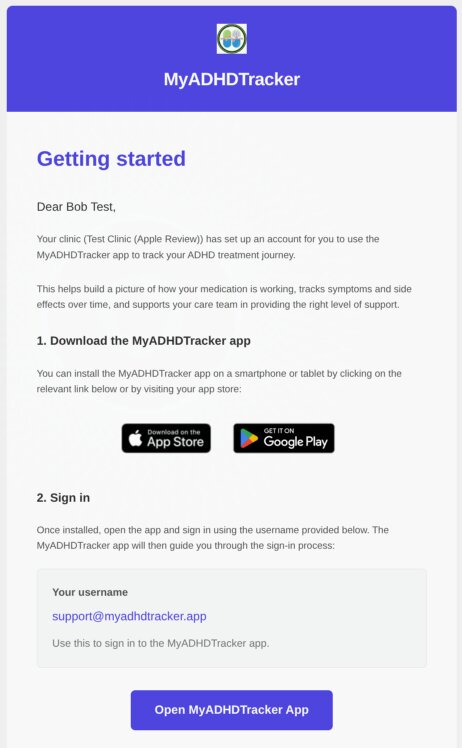
Check Your Email
Look for an email from MyADHDTracker with your clinic's name. This email contains:
- A link to download the app (App Store for iPhone, Google Play for Android)
- An "Open App" button to start setup
Can't find the email? Check your spam/junk folder, or contact your clinic to resend the invitation.
2.2
Download & Open the App
- 1. Tap the App Store or Google Play link in your invitation email
- 2. Download and install MyADHDTracker
- 3. Go back to your invitation email and tap "Open App"
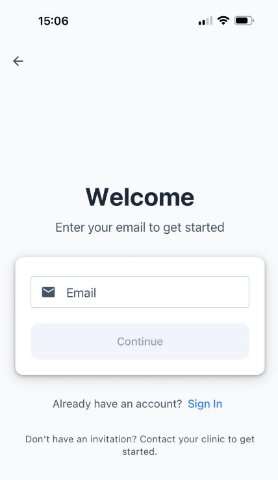
- 4. Enter your email address (the same one your invitation was sent to) and tap Continue
2.3
Verify Your Email
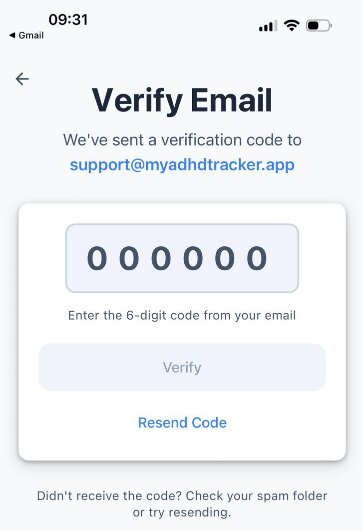
A 6-digit verification code will be sent to your email. Enter this code in the app to confirm your email address.
Didn't receive the code?
- • Check your spam/junk folder
- • Wait 2-3 minutes for the email to arrive
- • Tap "Resend Code" in the app after 60 seconds
2.4
Create Your Password
Choose a secure password for your account. Your password must have:
- At least 8 characters
- One uppercase letter (A-Z)
- One lowercase letter (a-z)
- One number (0-9)
Enter your password, confirm it, and tap "Continue".
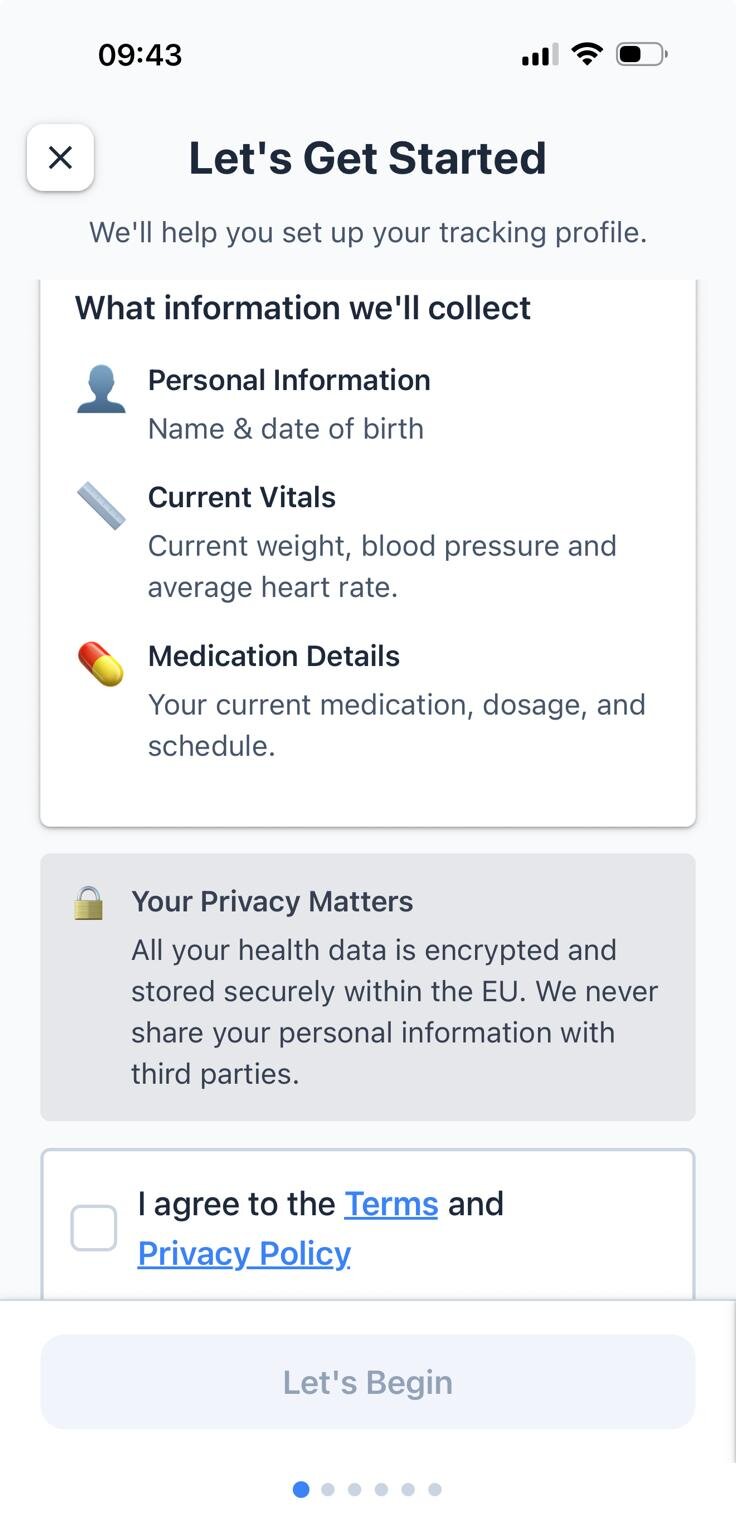
Account Created! You're now signed in. Next, you'll complete a short setup to personalise the app.